Chairs request materials for their competition area. Administrators set up the season, areas, suppliers, and users, then approve requests before the lock date.
Everyone lands on Portal after sign-in. Green banners show whether edits and registration are open.
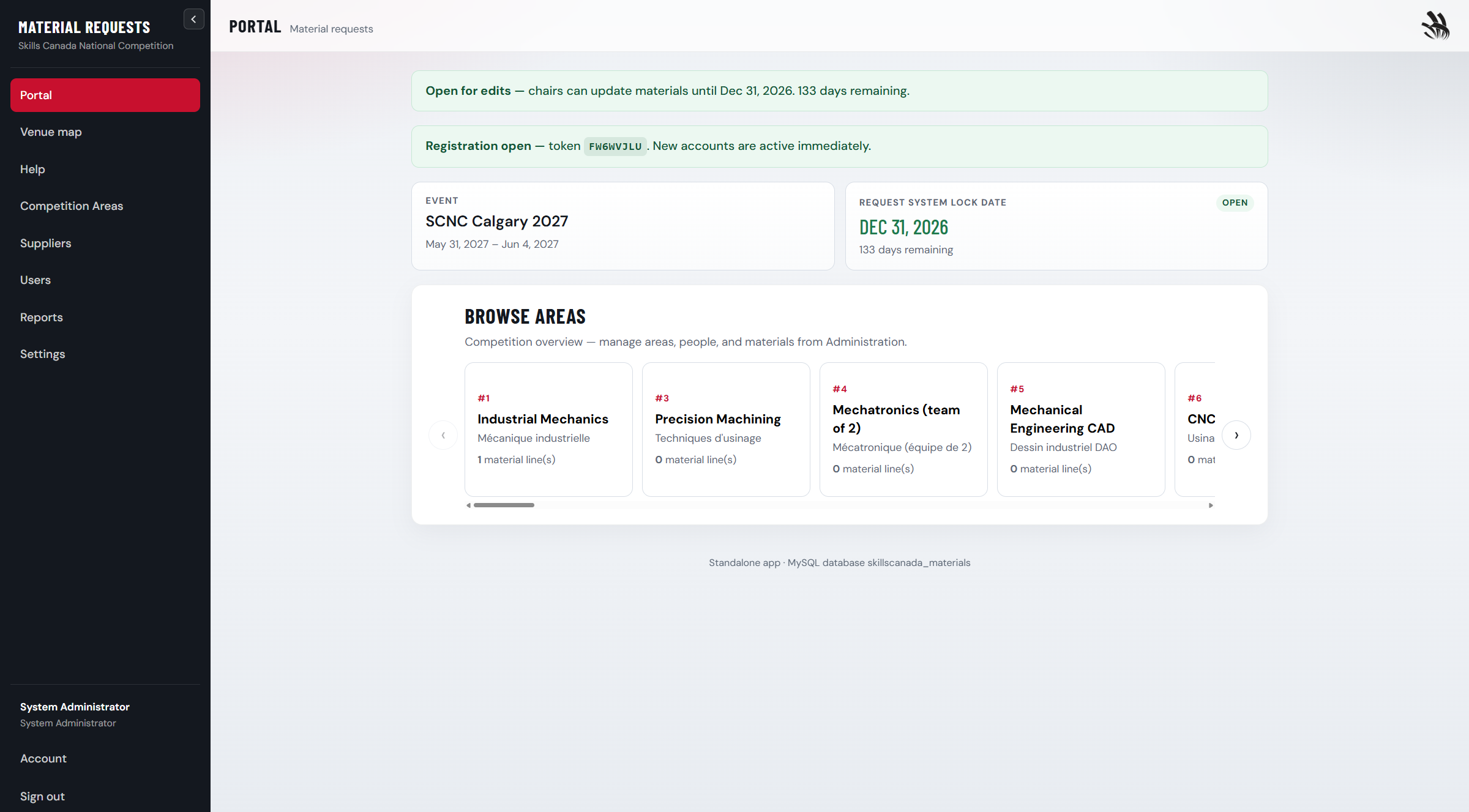
Portal — event dates, lock status, shortcuts for the year in the left menu.
My area (chairs) — answer questions, add materials.
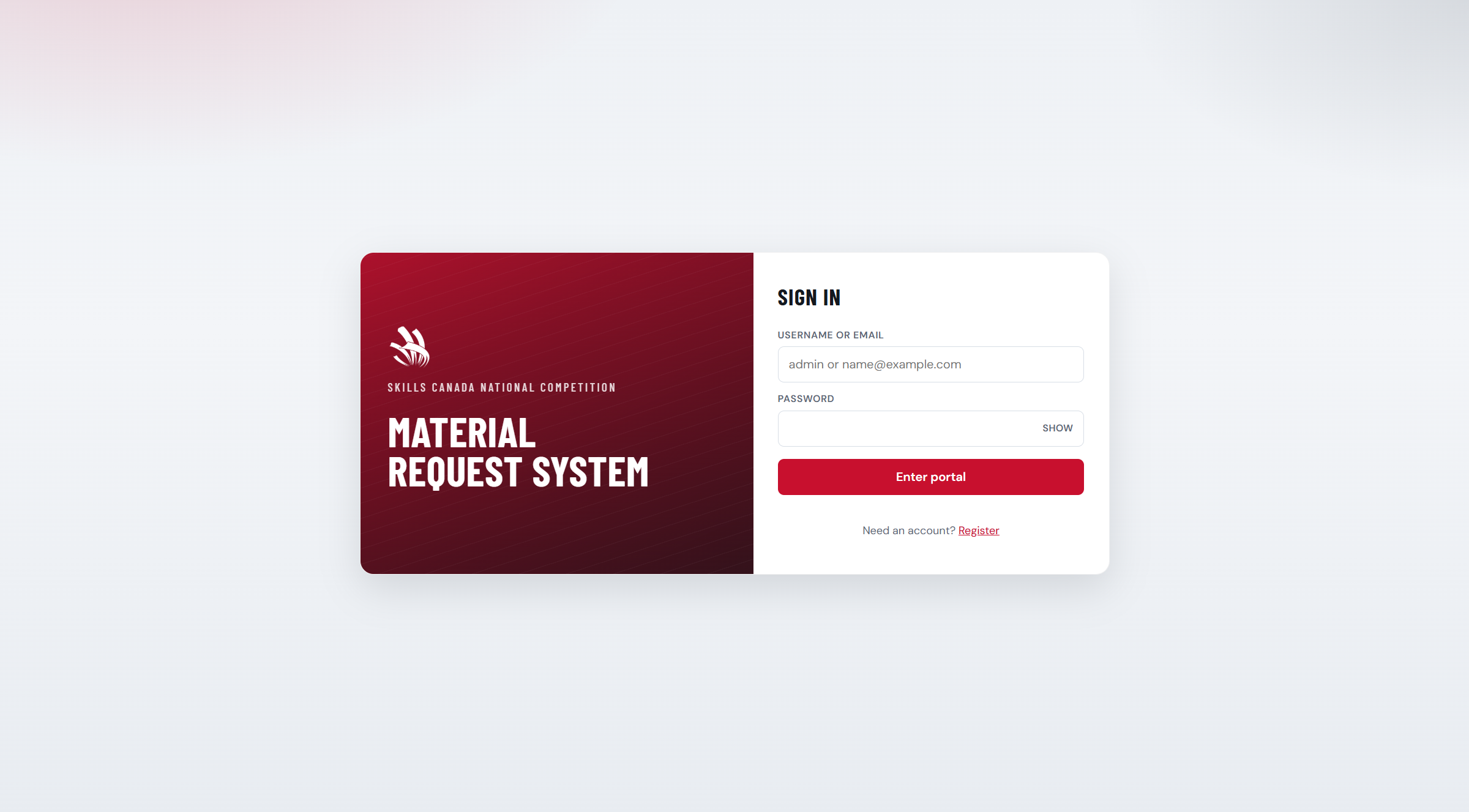
Use your username or email and password, then click Enter portal. Your username may differ from your display name (for example justinm rather than justin).
Sign-in screen. New users may see a Register link when registration is enabled.
Update email or password
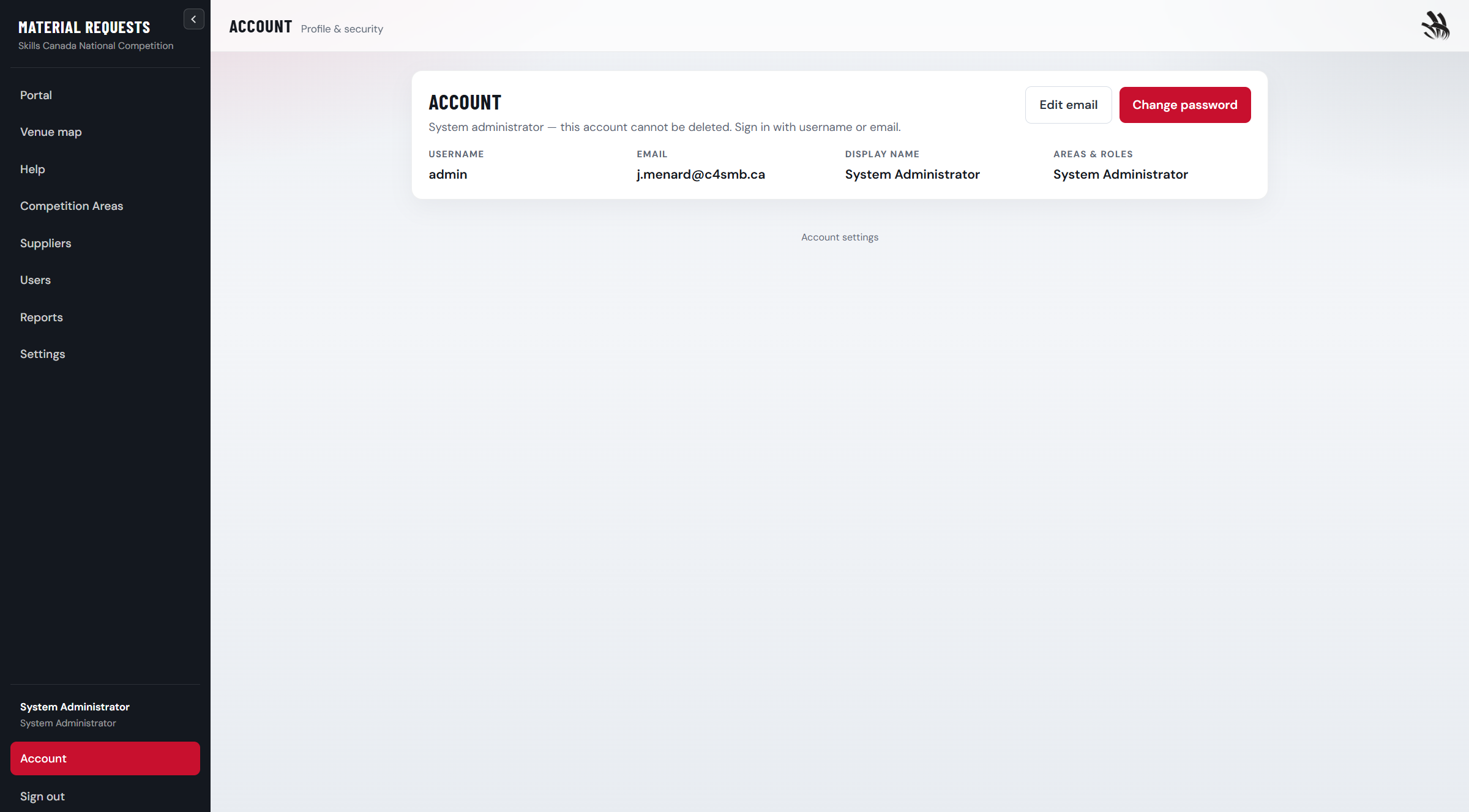
Open Account in the sidebar footer. You need your current password to save email or password changes. Chairs can turn material-message and area-chat emails on or off separately for each assigned competition area. Administrators have separate toggles for new registrations, material messages, and area chat. An organizer can also change these from Edit user or Edit admin → Notifications.
Account page — use Change email or Change password.
Blocked? Pending registration, a deactivated account, or a wrong password all prevent sign-in. Contact an organizer.
Typical chair workflow
Check Portal
Use Year in the left menu if you need a prior year. Confirm the lock date has not passed and note the event dates for the year you are viewing.
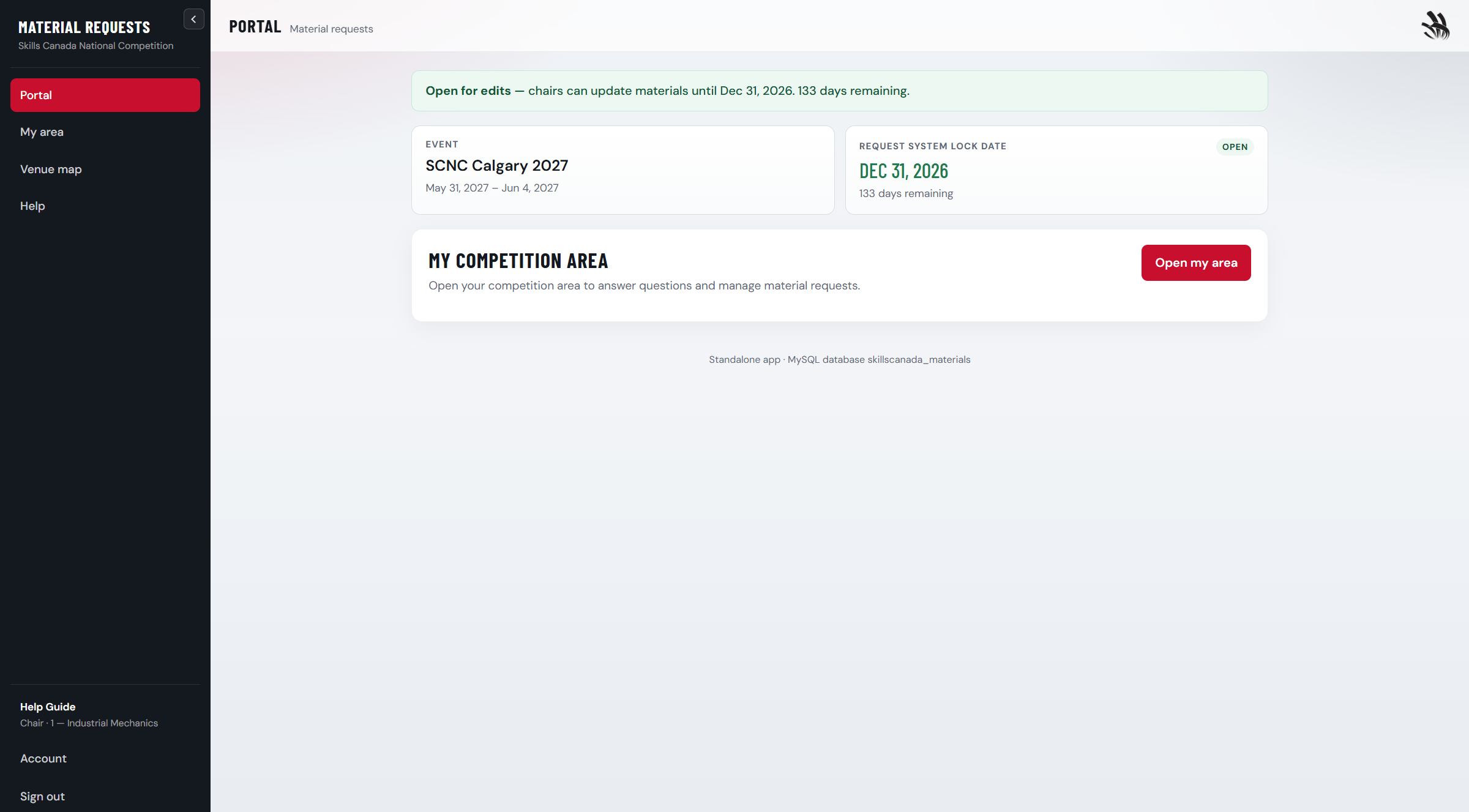
Chair view — Portal shows Open my area when you are assigned to a competition.
Open My area
Use the sidebar link or the Portal button. Switch tabs if you belong to more than one area.
Answer area questions
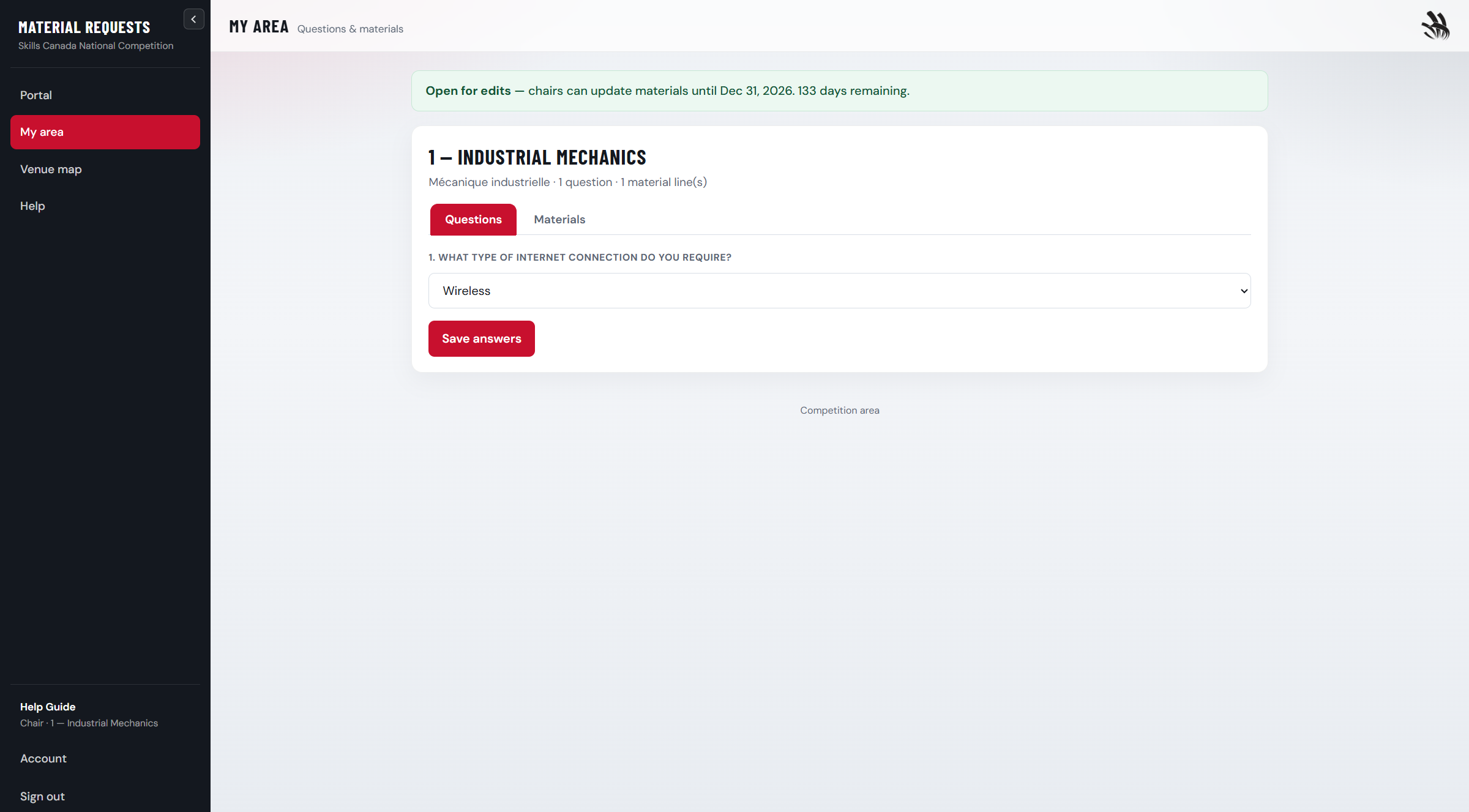
Complete every question on the Questions tab, then save. Materials stay locked until this is done for the year you are viewing.
Questions tab — answer every field, then save.
Use Chat for general questions
The Chat tab is for questions about the competition area that are not about a specific material line. Messages under a line stays for that request. Chat is available even before questions are complete.
Add material lines
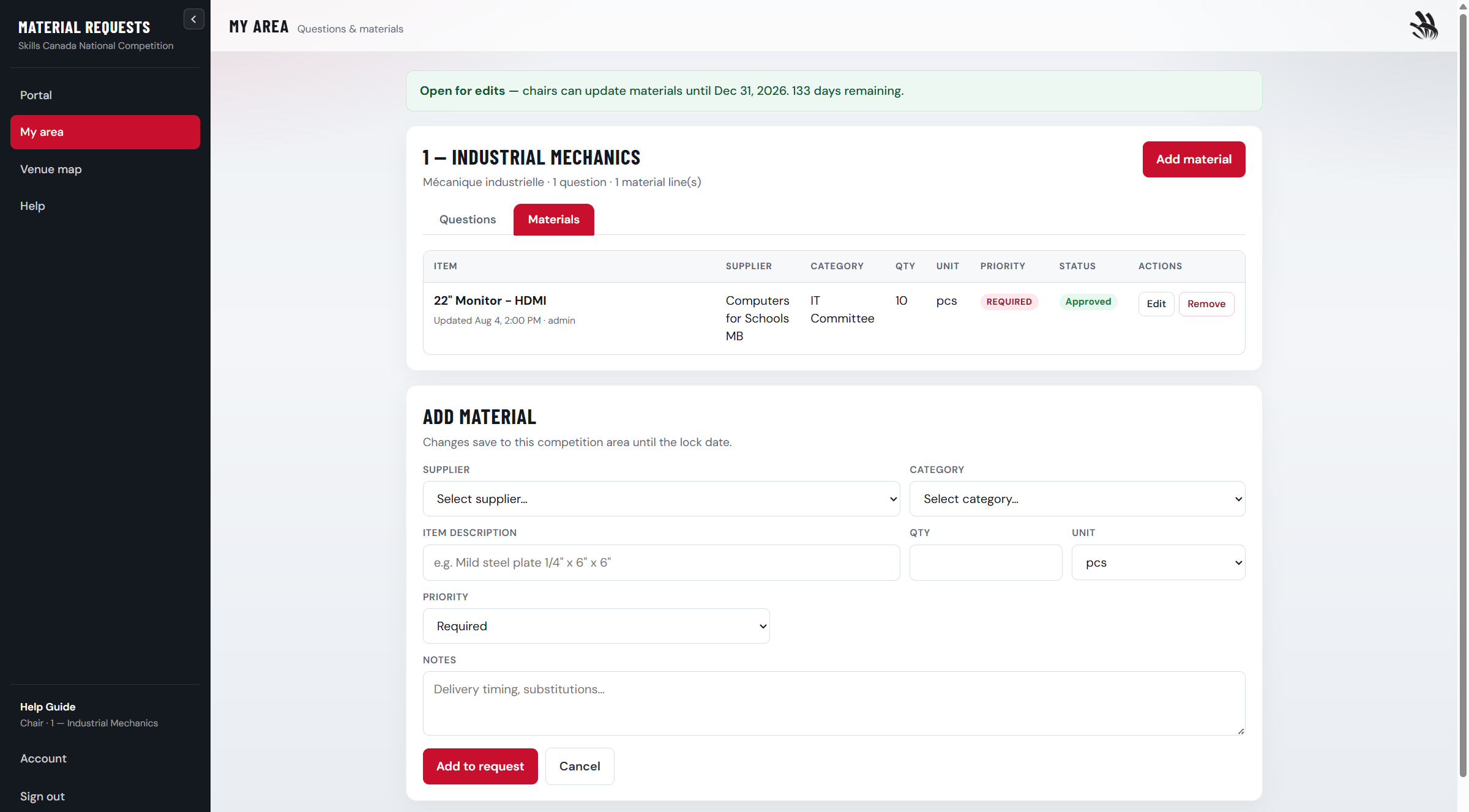
On the Materials tab, click Add material, pick supplier and category, enter the item, quantity, unit, and priority. Use Messages under a line to ask about that request.
Materials tab — your requests show Pending until an admin approves them.Add material — fill every required field, then save.
Check the venue map (optional)
Open Venue map if a floor plan PDF was uploaded.
Portal
Portal — lock status banner, event card, and area browser.
Open for edits (green banner) — chairs can still change materials when questions are complete.
Locked — past the lock date; view only.
Registration open — shows the token chairs use to self-register (admins set this in Settings).
Chairs use Open my area. Administrators browse all areas here or under Competition Areas.
My area — questions, chat, and materials
Questions first
Every area answers the same question list. You must answer and save all of them for the year you are viewing.
Questions tab — yes/no, multiple choice, or text answers.
Then materials
Pick a supplier and category. Catalog suppliers show a dropdown; freeform suppliers let you type the item. Click Messages under a line to talk with an administrator about that request. Use the Chat tab for general questions that are not about a specific line.
Materials tab — status shows Pending, Approved, or Rejected.
Add or edit a line
Add material — quantity must be greater than zero.
Editing a line as a chair sets it back to Pending. Administrators approve or reject from Competition Areas.
Venue map
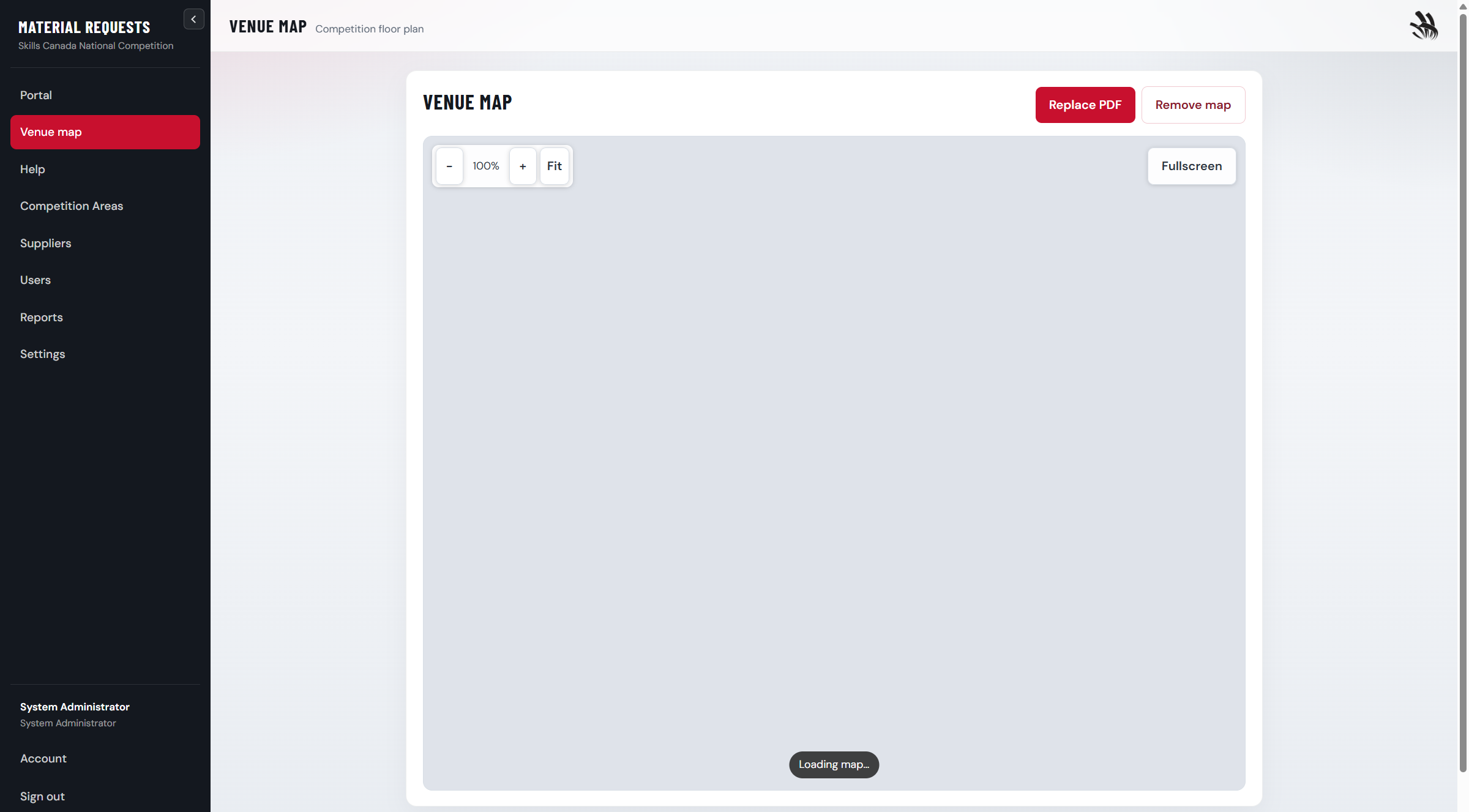
Venue map — pan and zoom the uploaded PDF. Admins upload or replace the file here or in Settings.
Everyone signed in can view the map. Administrators can upload, replace, or remove the PDF.
Administrator overview
Use the sidebar to manage the event. Open any competition area to review chair requests.
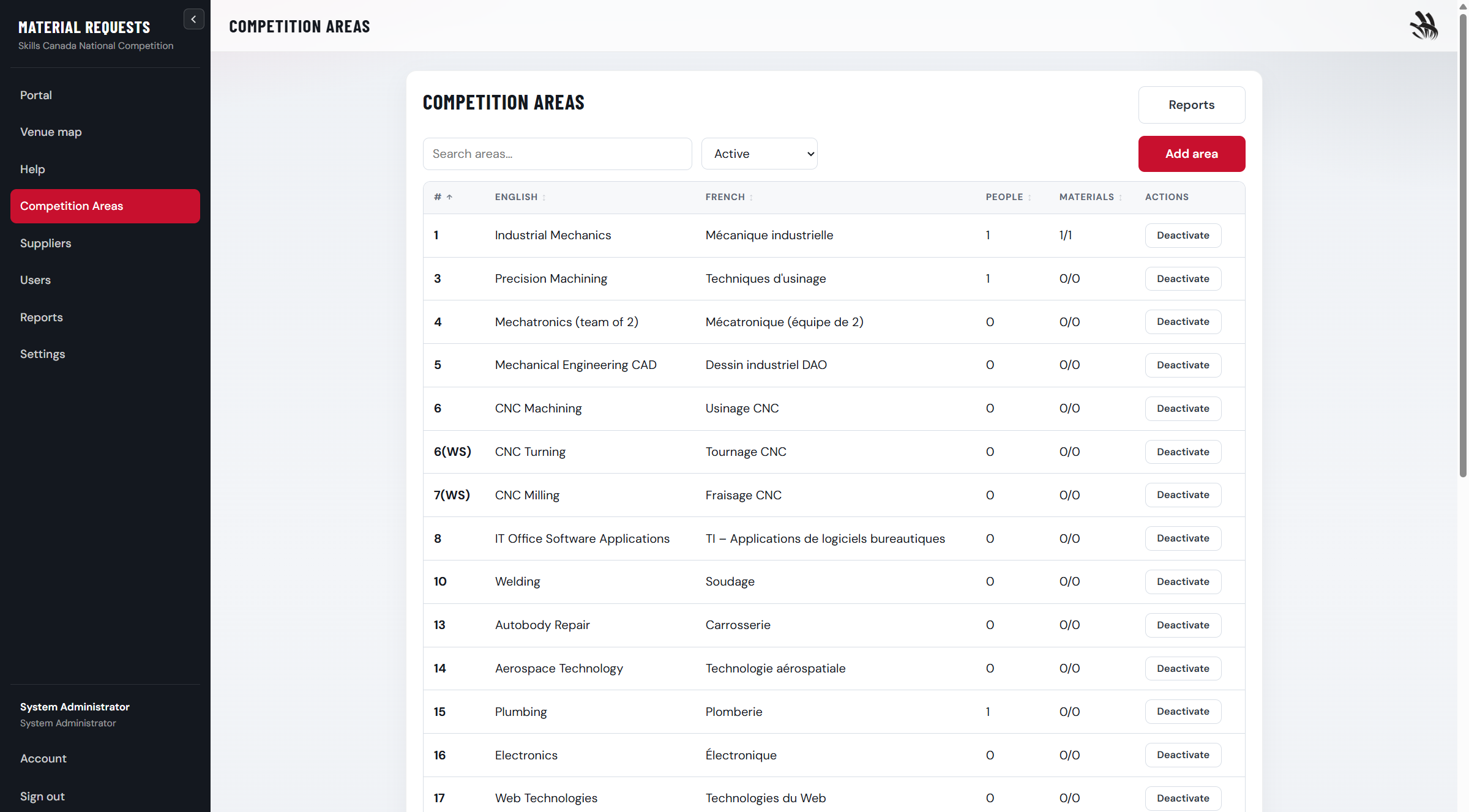
Competition Areas — search, filter, and open an area.
Competition Areas — areas, people, questions, chat, and materials review.
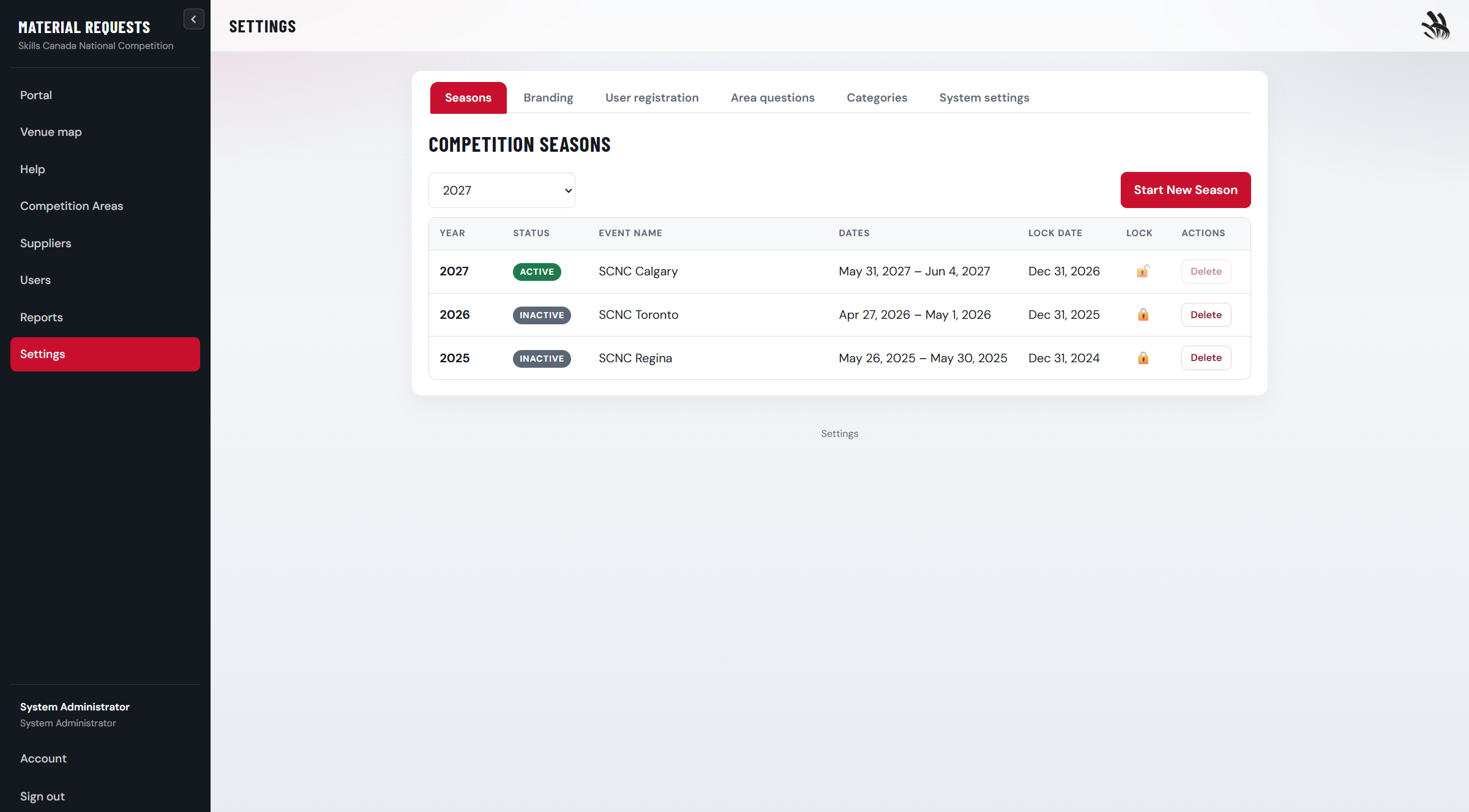
Settings → Seasons — status is Upcoming, Active, or Ended from the event dates. Each person can still pick another year in the left menu.
Season status
Upcoming is before the event, Active is during the competition window, and Ended is after those dates. People who have not picked another year in the menu land on the active event, or the next upcoming one. Set event dates on each season so this stays accurate.
Choose the lock date
Each year has its own lock date. After end of that calendar day, chairs cannot add, edit, or delete materials in that year. Open a year from the left menu to edit its dates.
Start a new season when you need a future year
Create the next season to set it up while another year is still upcoming or active. The year in your menu switches to the new one; other people stay on the active or next upcoming year until they switch. Deleting a season removes that year’s answers, materials, and chat. The shared question list stays.
Competition areas
Browse or add areas
Each area has a number plus English and French names. Use Add area for new competitions.
Area list — click an English name to open the area.
Open an area
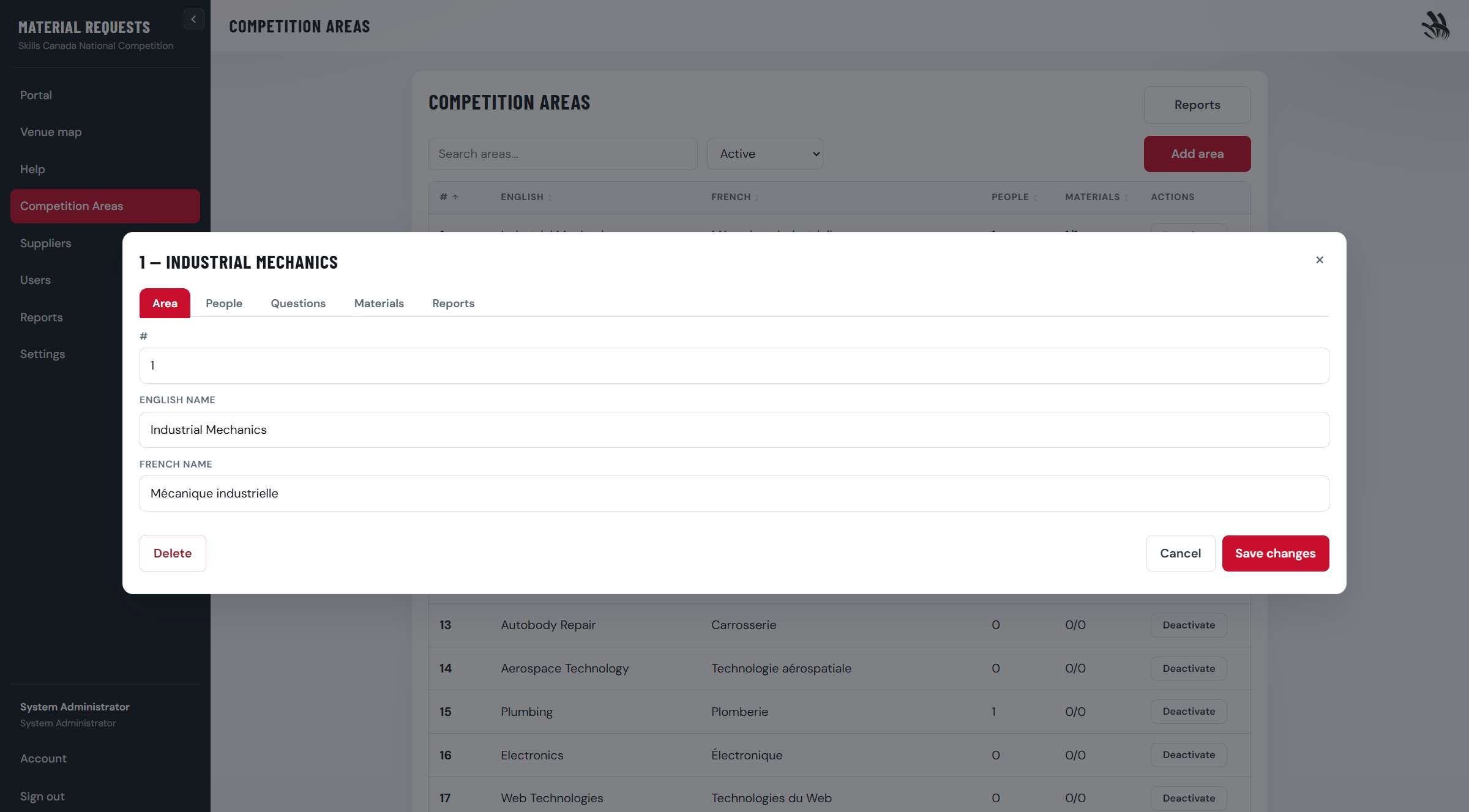
Manage details, people, questions, chat, and materials from the area editor. On the People tab, Messages and Chat mail are separate per area — turn each off independently. Chat is for general questions about the area; Messages on a material line is for that request.
Area editor — Details, People, Questions, Chat, Materials, and Reports tabs.
Bulk import (optional)
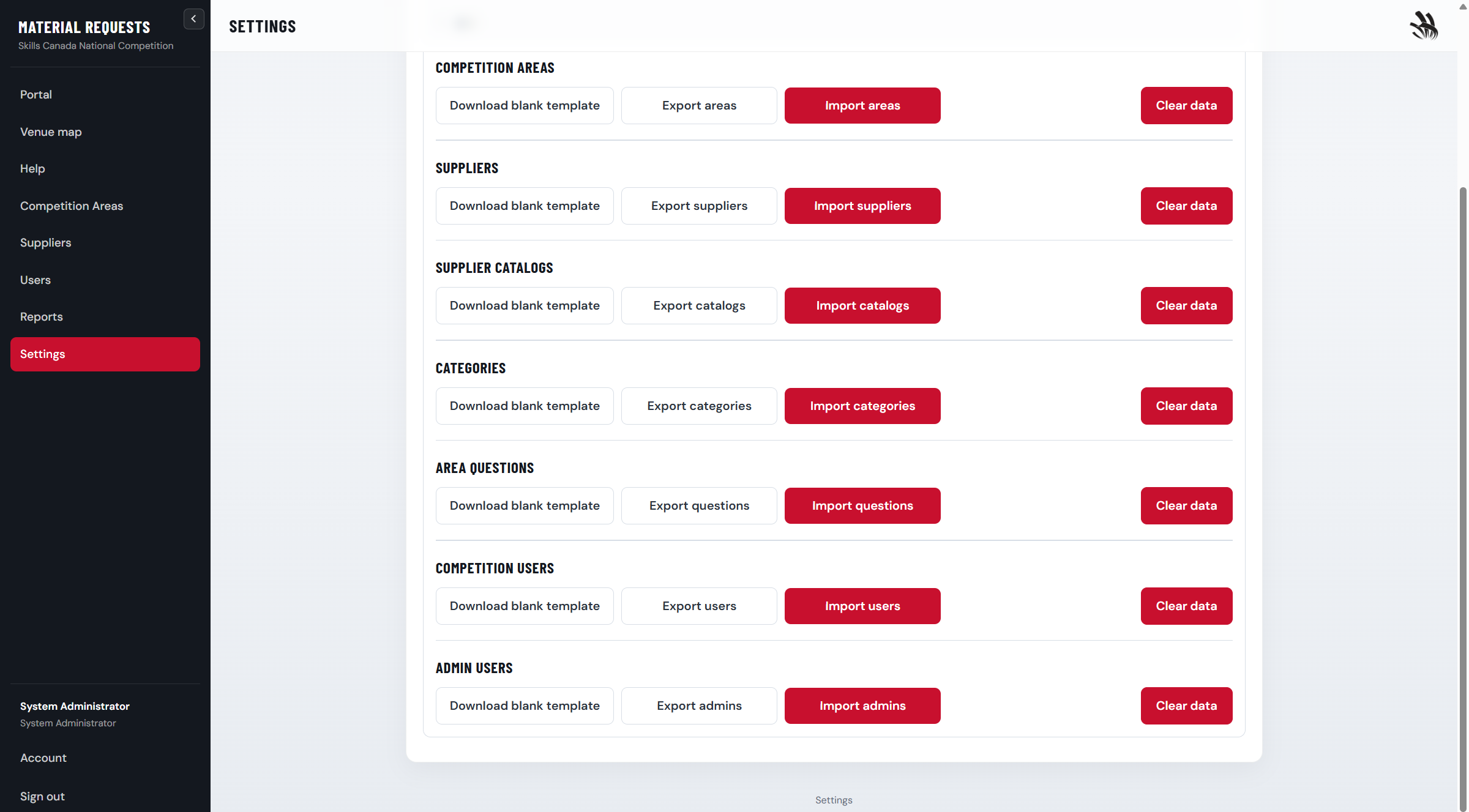
Settings → System settings → Data includes Excel templates for importing many areas at once.
You cannot delete an area that still has material requests. Deactivate it instead to hide it from new work.
Area questions and categories
Define area questions
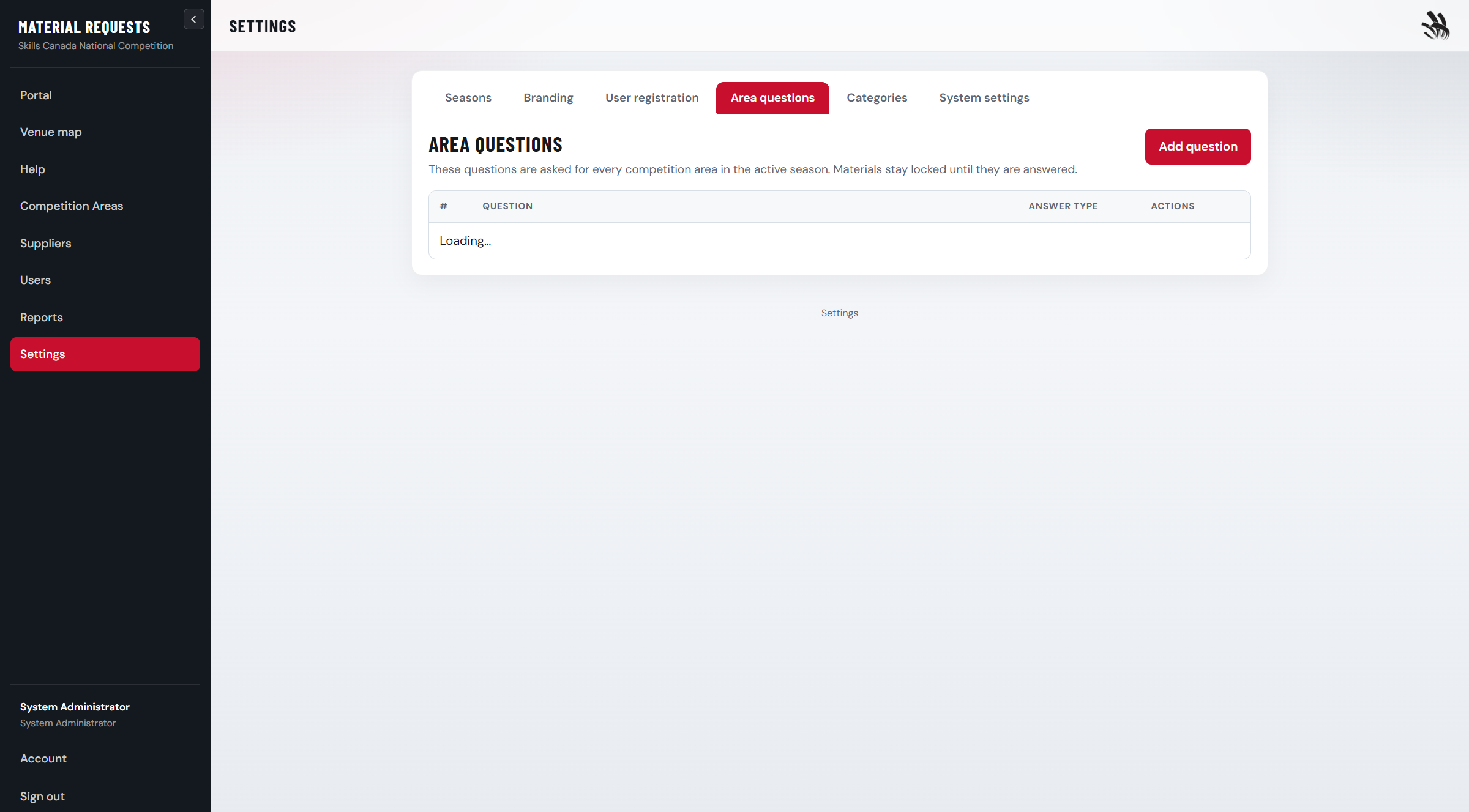
Settings → Area questions. The list is shared across years. Every area answers it again each year.
Area questions — add text, yes/no, or multiple-choice questions once; chairs answer them each year.
Manage categories
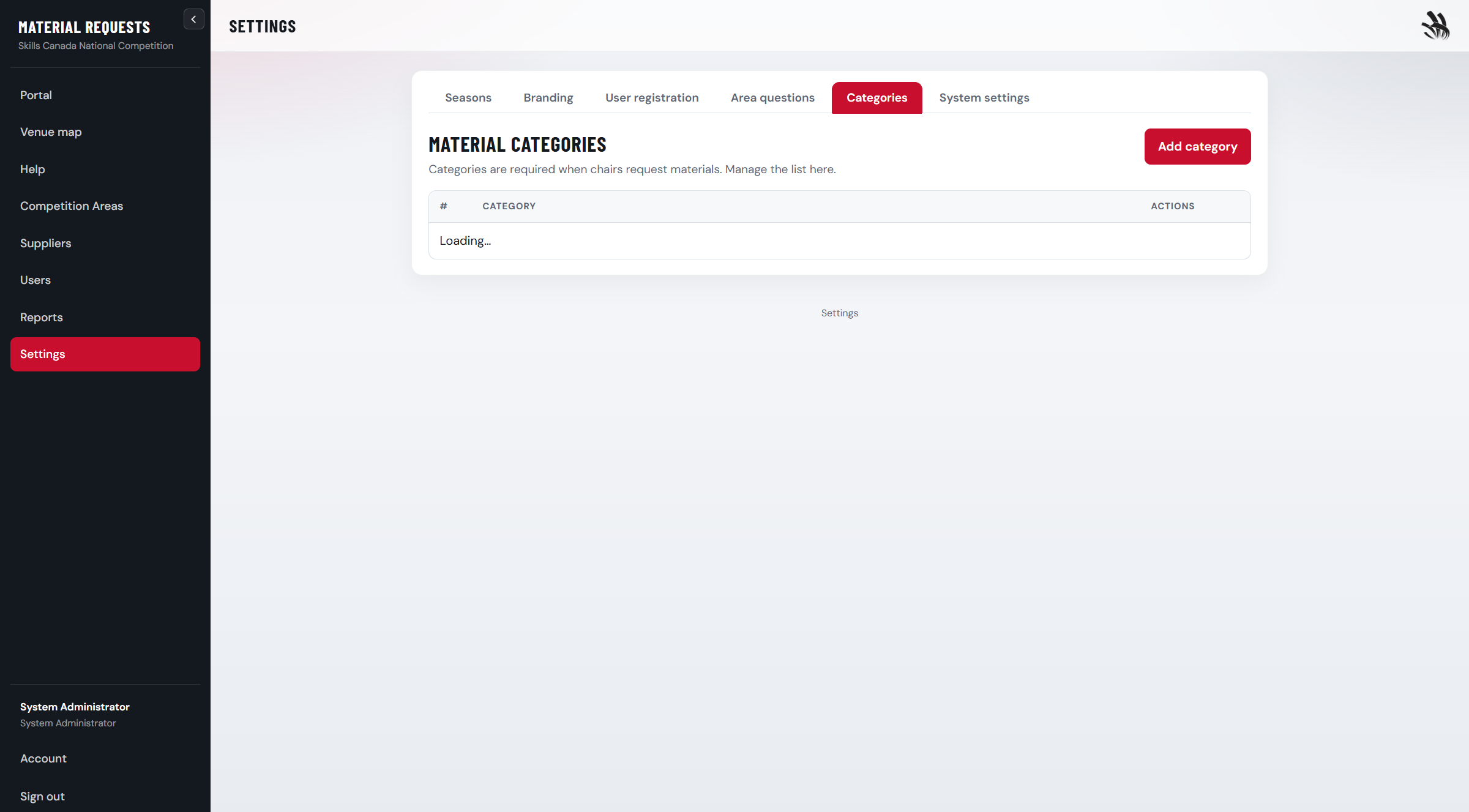
Settings → Categories. Chairs pick a category for each material line.
Categories — reassign materials before deleting a category in use.
Review answers per area
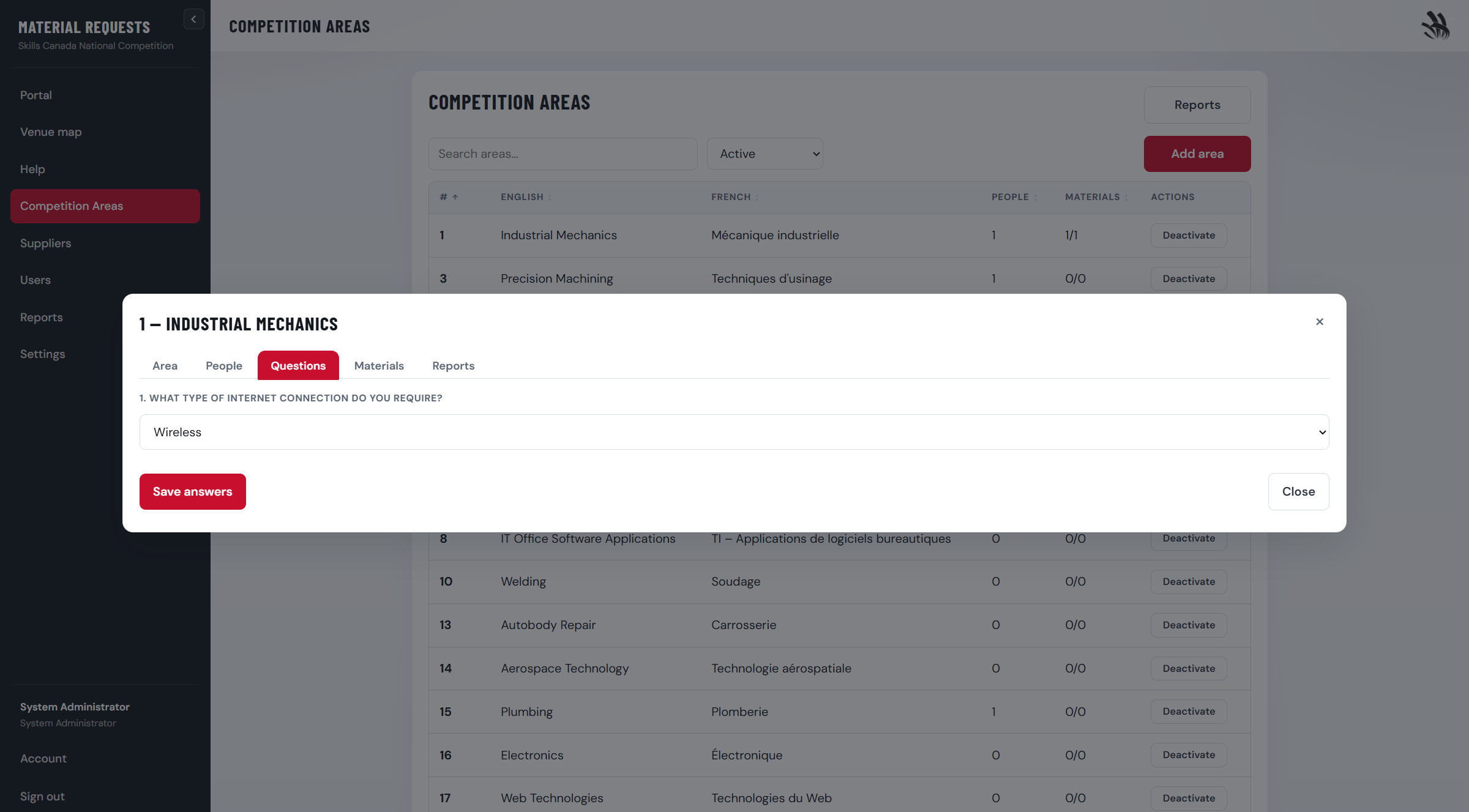
In Competition Areas, open an area and use the Questions tab to view chair answers.
Area Questions tab — view answers for this competition area.
Suppliers and catalogs
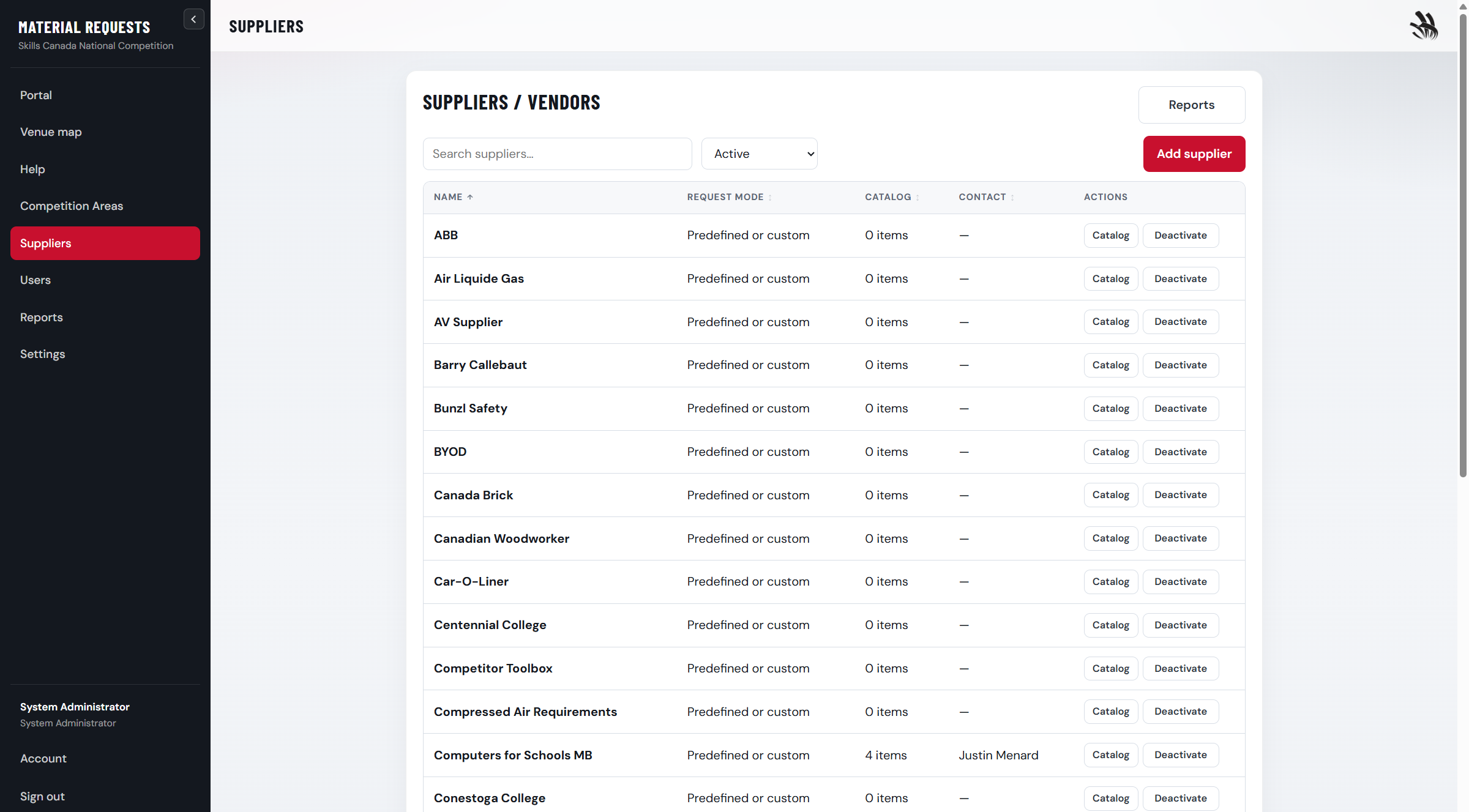
Suppliers — set request mode: freeform, predefined only, or both.
Add or edit a supplier
Enter contact details and choose how chairs enter items (type freely, pick from catalog, or both).
Build the catalog
After saving, click Catalog on that row to add items chairs can select.
Catalog editor — add items with skill area, name, brand, model, and units.
Import catalogs in bulk
Settings → System settings → Data includes supplier catalog import/export.
Inactive suppliers stay on old material lines but cannot be chosen for new requests.
Reviewing material requests
Open the area
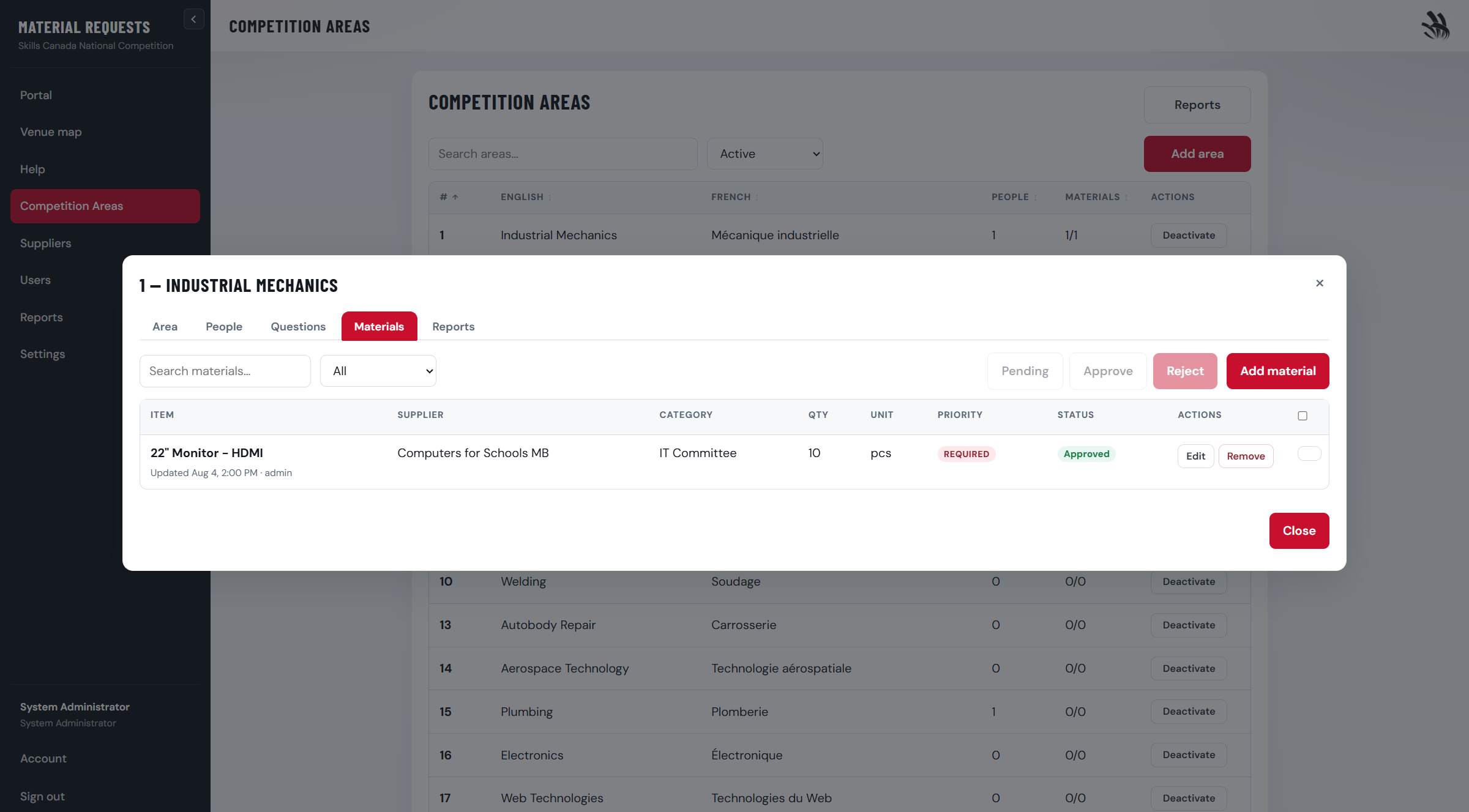
Competition Areas → click the area name → Materials tab.
Materials tab — filter by status and search items.
Approve or reject
Select rows and use bulk actions, or change status on individual lines. New chair submissions start as Pending. Open Messages under a line to answer questions about that request, or Chat for general questions. If Email is turned on in Settings, a chair’s message emails the admins, and an admin’s message emails the chairs on that area — not the person who posted, and not anyone with that kind of mail off (People tab Messages/Chat, Account, or Edit user / Edit admin → Notifications).
Add materials as admin (optional)
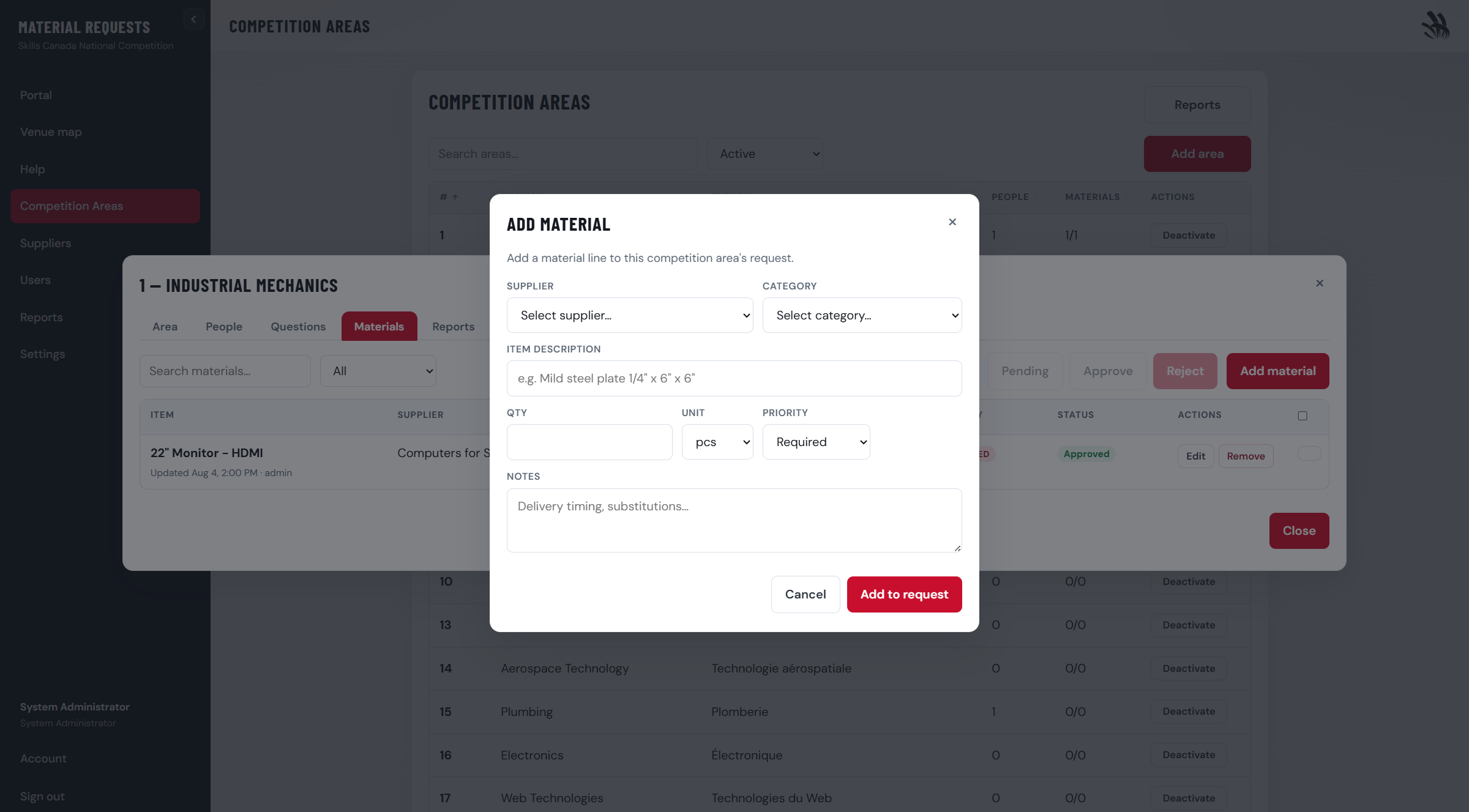
Click Add material to enter lines on behalf of an area. Admin edits do not force Pending.
Add material — same form chairs use in My area.
Users and registration
Set registration options
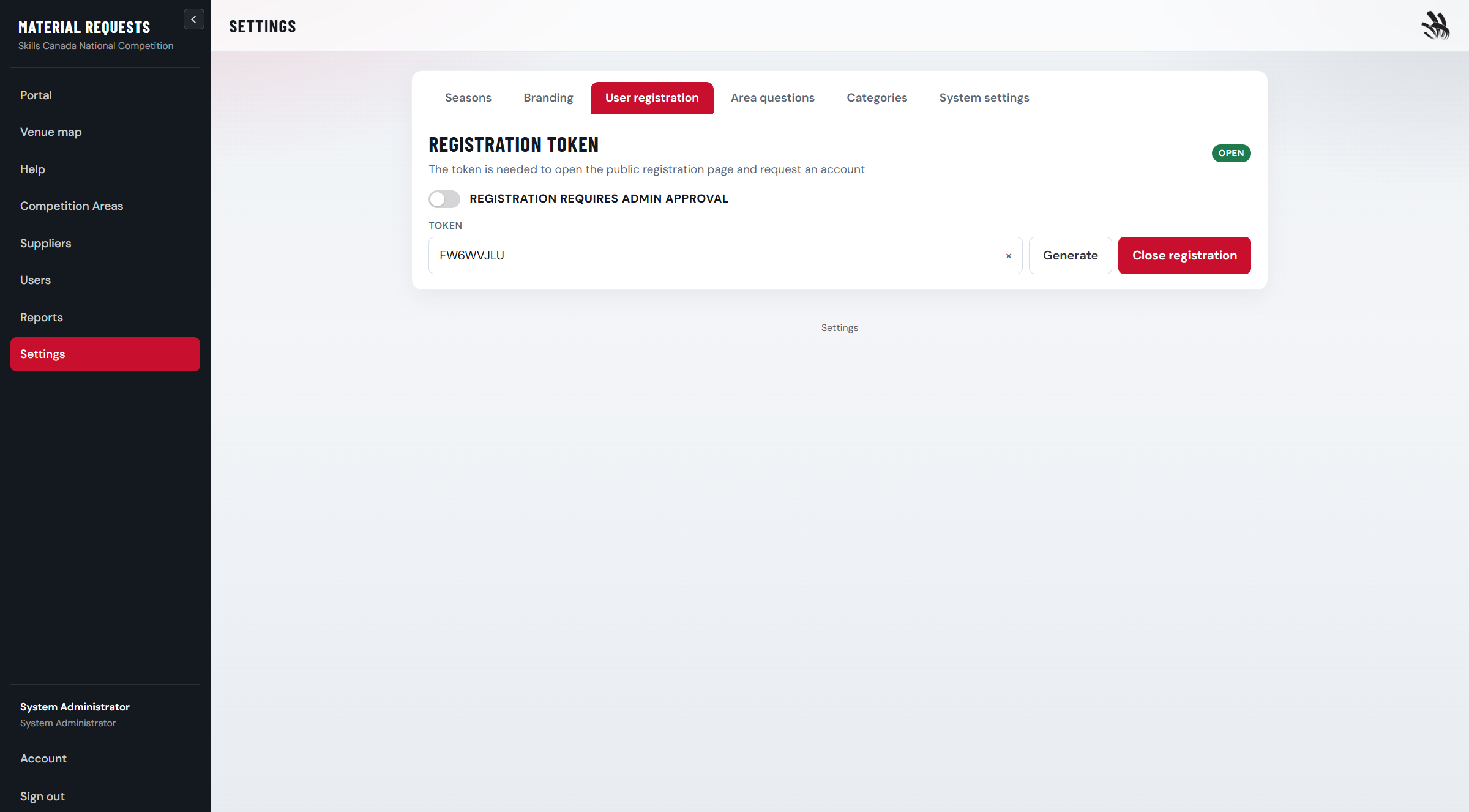
Settings → User registration — token, approval requirement, and registration open/closed. If Email is on, a new registration mails that person. When approval is required, administrators who have registration mail on (Edit admin → Notifications, or Account) are mailed too, and the person is mailed again after you approve them.
User registration — leave token blank to close public sign-up.
Enroll or approve users
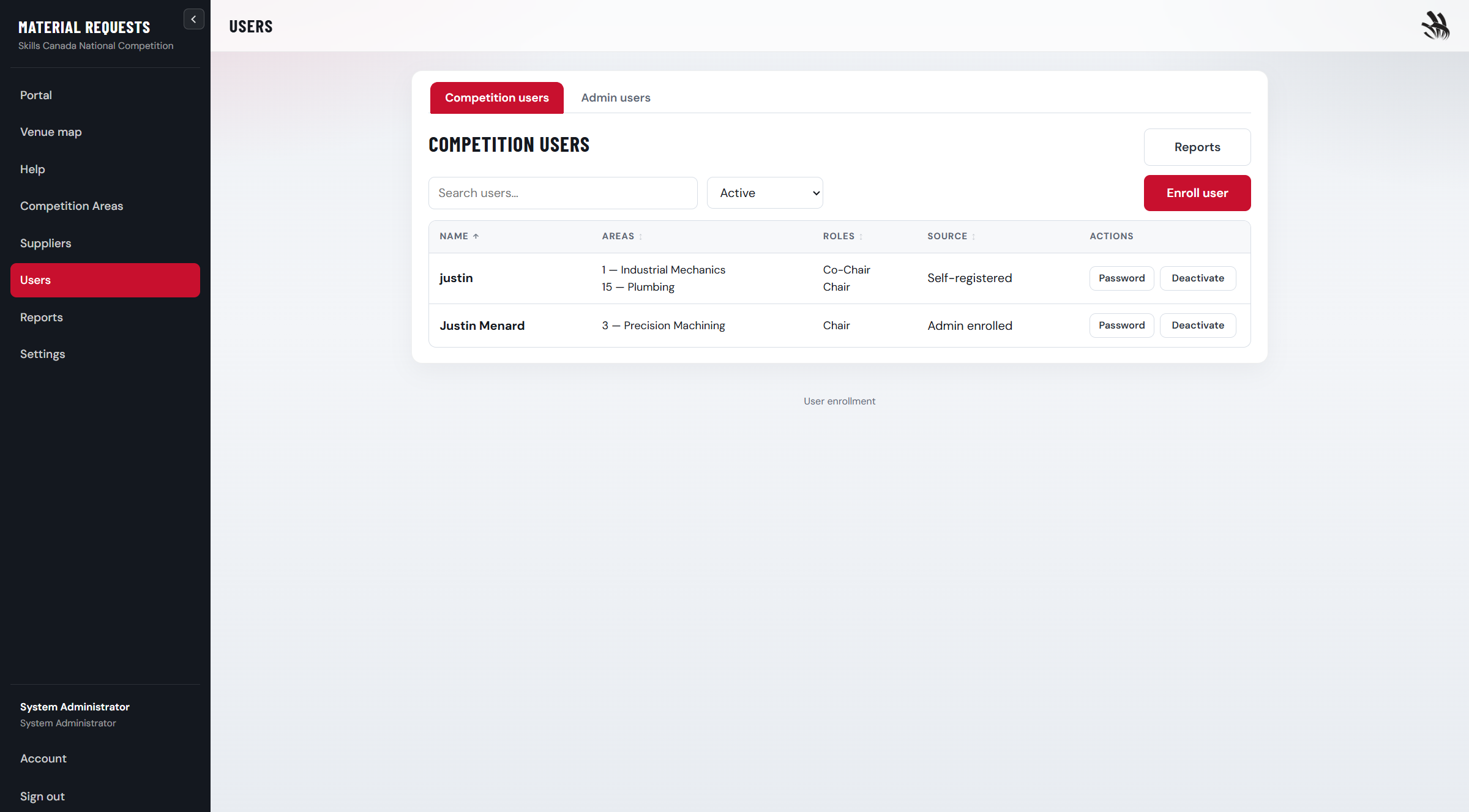
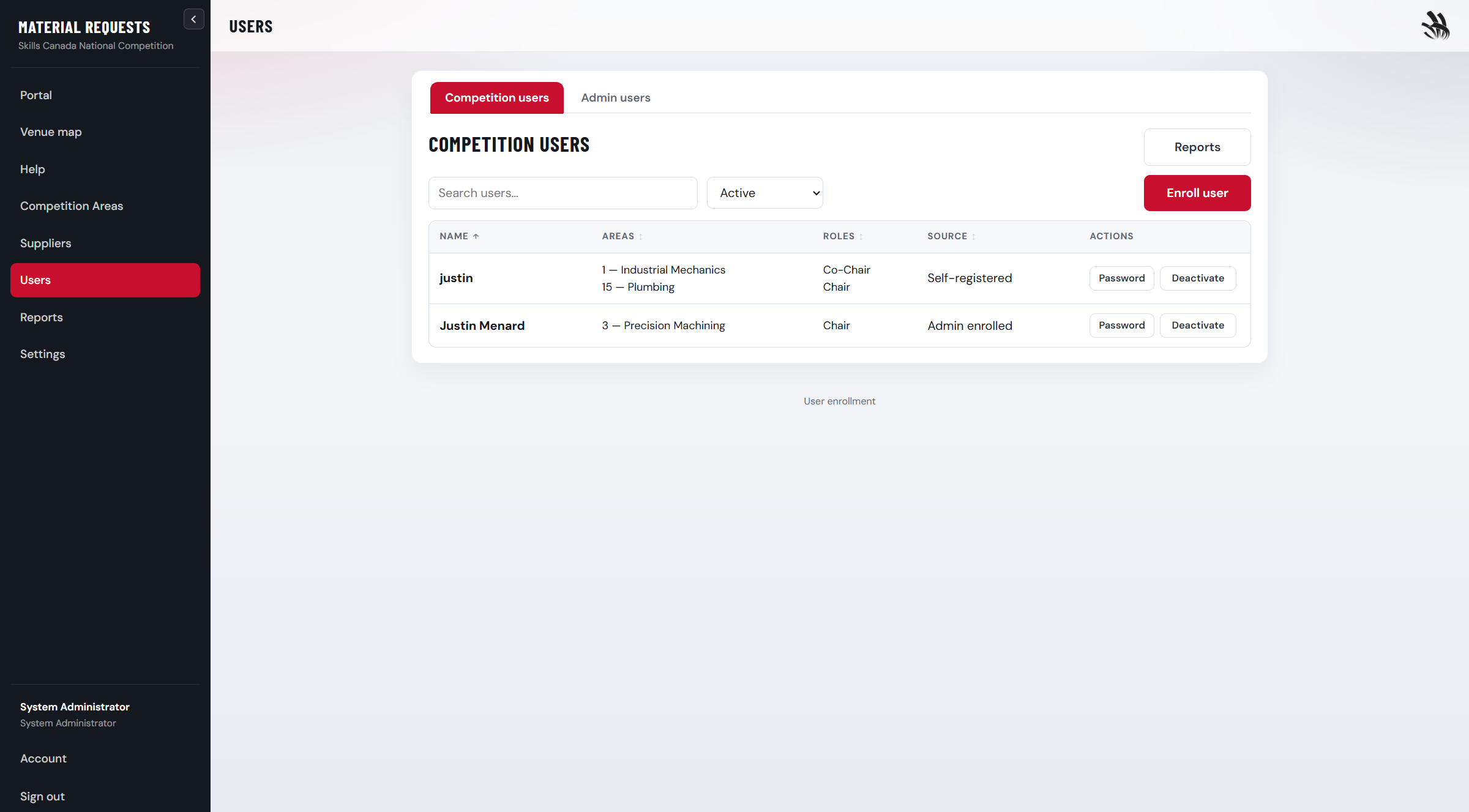
Users page — add chairs with area assignments, approve pending registrations, reset passwords, or deactivate accounts. When you edit a user or administrator, the Notifications tab lets you turn mail off for them: per competition area for chairs (material messages and area chat separately), or new registrations, material messages, and area chat for admins.
Users — assign at least one area and role (chair, co-chair, or other).
Reports and Excel
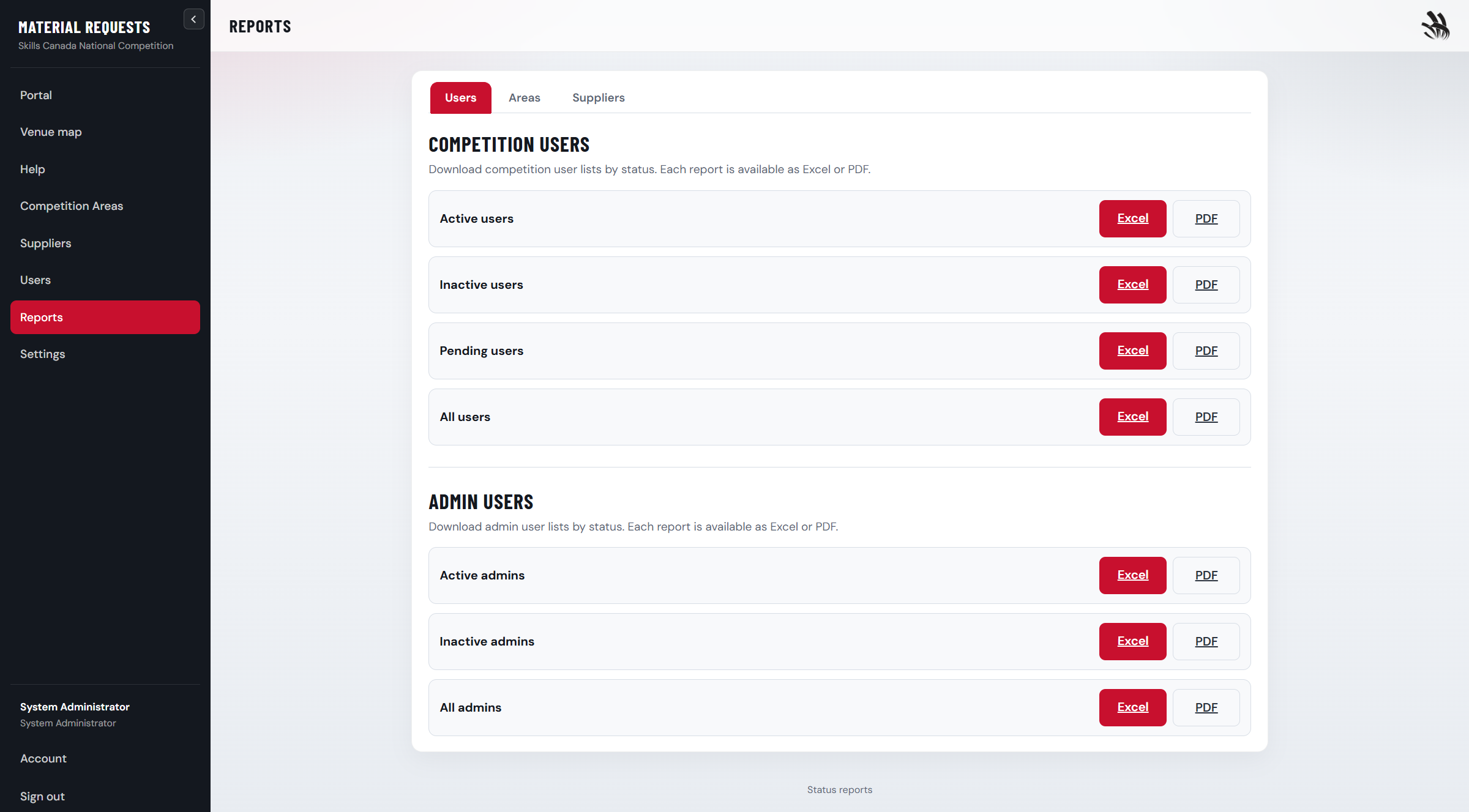
Reports — download Excel or PDF for users, areas, suppliers, and materials.
Each report has Excel and PDF buttons. For bulk updates, use Settings → System settings → Data to download templates and import spreadsheets.
Data section — templates and imports for areas, suppliers, catalogs, categories, questions, and users.
System administrator
The admin account is permanent. Enroll additional administrators from Users (admin tab) as system admin only.
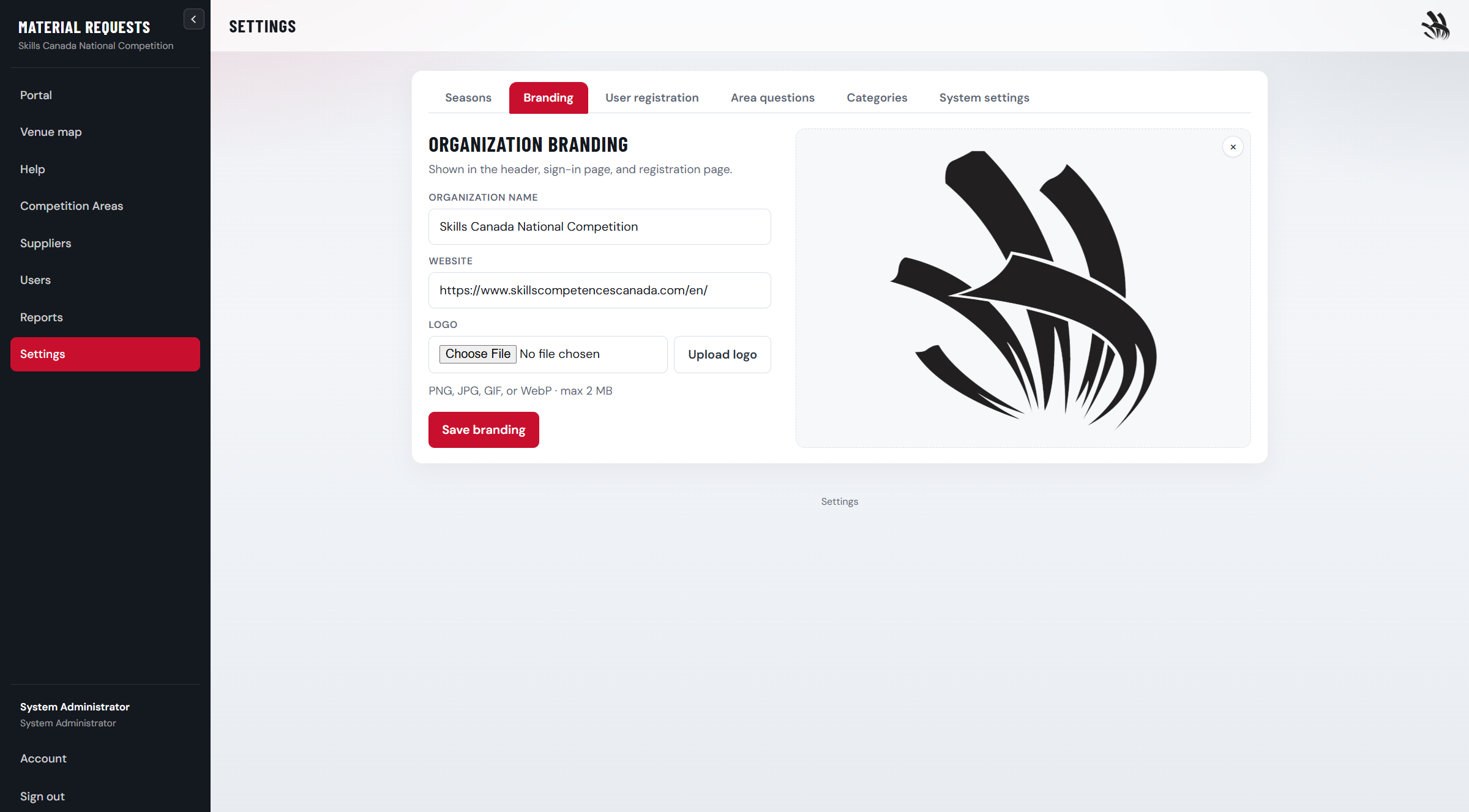
Branding
Settings → Branding — organization name, website link, and logo shown in the header.
Branding — logo appears in the top bar for all signed-in users.
Recovery and database tools
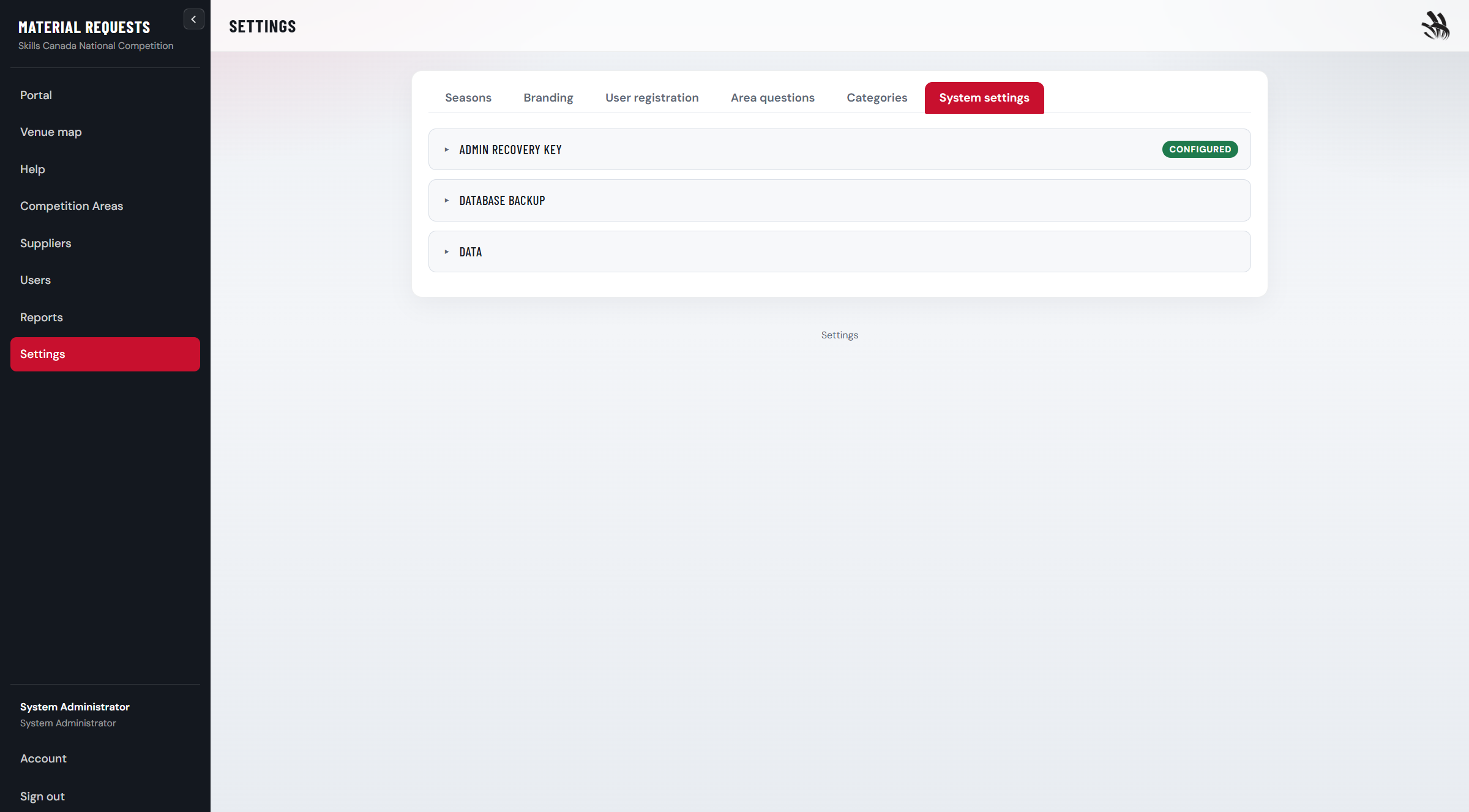
Settings → System settings — recovery kit, full database export/import, clear data, and demo reset.
System settings — generate a recovery kit and use recovery.php / db-setup.php when locked out.
Full database import replaces every table. Clear data and reset demo require typed confirmations and your password.
If something is blocked
Cannot add materials — finish all area questions and confirm the lock date has not passed.
Materials tab locked — complete and save every question on the Questions tab first.
Cannot pick a supplier — supplier may be inactive or catalog-only with an empty catalog.
No My area link — administrators use Competition Areas; chairs need an area assigned on the Users page.
Forgot global admin password — use the offline recovery kit and recovery.php (not a chair password reset).
If materials are locked, check the Questions tab — every answer must be saved.